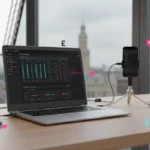
Can You Use TikTok LIVE Studio On Your Phone?
No, you cannot install and run TikTok LIVE Studio directly on an iPhone or Android phone. TikTok LIVE Studio is desktop broadcasting software, and TikTok’s official guidance currently points to Windows support rather than a mobile app version.
If you only have a phone, use the TikTok app to go LIVE. If you want more control, use TikTok LIVE Studio on a Windows computer and connect your phone as a source.
You can still use your phone with TikTok LIVE Studio, but there is an important difference. The software runs on a Windows computer, while your phone can be connected as a screen casting source for mobile games, app demos, tutorials, or phone based content.
That small detail causes a lot of confusion for creators, sellers, and livestream hosts. If you have mixed up TikTok Studio, TikTok LIVE Studio, and the mobile LIVE button, you are not alone. TSLA helps brands clear up this kind of setup problem through practical TikTok Shop and LIVE support, especially when a simple phone stream is no longer enough.
What TikTok LIVE Studio Actually Is
TikTok LIVE Studio is TikTok’s desktop streaming tool for creators who want more control than the normal mobile LIVE button gives them. It works like a small broadcast desk on your computer, where you can manage cameras, screens, audio, overlays, and scenes in one place.
A scene is simply a layout for your stream. For example, you might have one scene showing your face, another showing your phone screen, and another showing a product close up or gameplay.
LIVE Studio is useful when you want a more polished livestream. For TikTok Shop sellers, mobile gamers, educators, and presenters, that extra control can make the difference between a casual stream and a stronger live show.
TikTok LIVE Studio Versus The TikTok Mobile App
The TikTok mobile app is the fastest way to go LIVE from your phone, while TikTok LIVE Studio is the better option when you want a more planned desktop setup. The right choice depends on whether you need speed or control.
With the TikTok app, you open TikTok, tap the plus button, swipe to LIVE, add your title, check your settings, and start if your account is eligible.
TikTok LIVE Studio is different. It is not a normal phone app, and it is not designed to run directly on Android or iPhone. It needs a compatible Windows computer. After that, your phone can be added into the stream if you want to share the screen.
The mobile app is best when you want speed and simplicity. LIVE Studio is best when you want structure, better production, multiple sources, stronger audio control, and a more professional presentation.
- Fast phone streaming
- Windows desktop setup
- Phone screen casting
- Multiple video sources
- Clearer audio control
- Better stream layout
- Stronger show planning
If you are building a commercial LIVE selling format, the production setup matters. TSLA’s TikTok Shop Live Agency support is built around turning those moving parts into a repeatable system, not just a one off stream.
TikTok Studio Is Not The Same As TikTok LIVE Studio
TikTok Studio and TikTok LIVE Studio are not the same tool, even though the names sound similar. TikTok Studio is mainly for creator management, while TikTok LIVE Studio is for desktop livestream broadcasting.
TikTok Studio usually refers to creator tools for managing content, analytics, editing, and publishing. TikTok LIVE Studio is specifically for livestream broadcasting from a desktop setup.
So if you find an app called TikTok Studio on your phone, do not assume it gives you the desktop LIVE Studio workflow. For anything involving downloads, access, or system requirements, stick with TikTok’s official pages and avoid files from unofficial sources.
Can You Use Your Phone With TikTok LIVE Studio?
Yes, you can use your phone with TikTok LIVE Studio as part of a computer based setup. The phone does not run the software, but it can be added as a screen source inside the desktop broadcast.
According to TikTok’s official LIVE Studio FAQ, LIVE Studio supports Windows. TikTok also provides guidance for adding a phone as a cast source, which means viewers can see your phone screen inside your LIVE Studio broadcast.
For an iPhone, you would open LIVE Studio on your computer, select your scene, add a source, then choose the iOS casting option. You may be able to connect using screen mirroring or a wired method, depending on the available workflow shown in LIVE Studio.
For Android, the idea is similar. You open LIVE Studio, choose your scene, add a source, select the Android cast option, then follow the connection prompts. Always test it before you go live, because small connection issues feel much bigger when viewers are already watching.
When Phone Casting Makes Sense
Phone casting makes sense when the content you want to show is on your phone. It is useful for mobile games, app walkthroughs, product pages, tutorials, and phone based demonstrations.
Mobile gamers use phone casting to stream gameplay. Educators use it to show app walkthroughs. Sellers use it to show mobile shopping journeys, product pages, or behind the scenes content.
It can also help if you want the feel of phone content with the control of a desktop broadcast. You can keep your phone as the content source while using the computer for layout, audio, and stream management.
For brands that want to build stronger LIVE shows, it is worth reading TSLA’s breakdown of a TikTok LIVE Studio equipment guide. The right kit does not need to be excessive, but it does need to be reliable.
How To Go LIVE On TikTok Using Only Your Phone
If you only have a phone, you can go LIVE through the normal TikTok app, as long as your account has access. You do not need TikTok LIVE Studio for a basic phone stream.
- Open the TikTok app on your phone.
- Tap the plus button at the bottom of the screen.
- Swipe across until you see the LIVE option.
- Add a clear title for your stream.
- Check your available settings and filters.
- Tap Go LIVE when you are ready.
This is the best route if you are chatting with your audience, showing a product quickly, answering questions, or testing whether LIVE is right for you. It is simple, low cost, and quick to set up.
If your aim is to sell through TikTok Shop, you may also want to compare the phone route with a more planned selling format. TSLA has a useful guide on how to go live on TikTok for UK sellers, which is especially helpful if you are moving from casual content into sales focused livestreaming.
What You Need For LIVE Studio With A Phone
To use your phone with TikTok LIVE Studio properly, you need a Windows computer, the LIVE Studio software, a TikTok account with LIVE access, and a stable internet connection. Your phone then works as a source, not as the main device running the software.
You also need to think about audio. Bad sound loses viewers faster than slightly imperfect video. A simple external microphone can make your stream feel much more professional, especially if you are selling, teaching, or hosting for long periods.
For video quality, your computer matters. If the machine struggles, your stream may lag, blur, or drop frames. Dropped frames mean the stream is missing bits of video, which makes movement look jumpy or delayed.
If you are a UK brand planning regular livestreams rather than a quick test, it may be smarter to speak to the TSLA team about your LIVE setup before buying random equipment. A practical plan can save a lot of wasted spend.
Why LIVE Access On Phone Does Not Always Mean LIVE Studio Access
LIVE access on your phone does not always mean you can use TikTok LIVE Studio, because mobile LIVE access and desktop LIVE Studio access can be treated differently by TikTok.
TikTok access can depend on your region, account status, age, follower level, account history, and changing platform requirements. The exact rules can vary, so it is better to check inside your TikTok account rather than rely on old screenshots from tutorials.
Installing LIVE Studio also does not unlock permission by itself. The software and the account access are two separate things. If your account is not eligible, the tool may install but still not let you broadcast.
If your issue is broader than LIVE Studio, this TSLA article on why you cannot go live on TikTok explains common causes in plain English.
Privacy Checks Before You Cast Your Phone Screen
Before you cast your phone screen, check your privacy settings because viewers may see everything that appears on your display. That can include notifications, private messages, email previews, banking alerts, calendar reminders, and other sensitive information.
Before you stream, turn on Do Not Disturb, close private apps, hide message previews, and remove anything sensitive from your recent apps. Also lock your screen orientation so the view does not keep flipping during the broadcast.
This is not just about embarrassment. For businesses, privacy mistakes can create trust issues, especially if customer information, supplier details, or internal messages appear on screen. Treat your phone like part of your broadcast set, not just a casual device in your hand.
Common Problems And Simple Fixes
Most TikTok LIVE Studio phone issues come from using the wrong device, weak connections, old software, or account access limits. Start with the simple checks before changing your whole setup.
If LIVE Studio will not install on your phone, nothing is broken. It is desktop software, so use the TikTok mobile app for phone only streaming instead.
If your phone does not appear as a cast source, update LIVE Studio, check your cable or wireless connection, choose the correct iOS or Android casting option, then restart both devices. A basic restart fixes many streaming issues.
If the screen casting keeps disconnecting, move closer to the router, reduce other internet usage, or try a wired connection if available. Wireless casting is convenient, but it is not always the most stable choice for a long stream.
If the stream looks blurry or laggy, reduce the resolution or frame rate inside your settings. Frame rate means how many images appear each second. Lower settings can look less sharp, but they often make the stream smoother on weaker computers.
Which Setup Should You Choose?
Choose phone only LIVE if you want the fastest route, you are just chatting, you do not own a computer, or you are testing your confidence on camera. Choose TikTok LIVE Studio with a phone if you want more control and a more repeatable livestream setup.
LIVE Studio with a phone is a better fit if you want to stream mobile games, show your phone screen, use overlays, manage scenes, improve audio, or build a more planned live format. It takes more setup, but it gives you far more control.
For TikTok Shop sellers, the decision usually comes down to ambition. A phone can get you started. A stronger LIVE Studio setup can help you turn livestreaming into a proper sales channel. If you are serious about selling live, do not guess your setup. Test it, simplify it, then improve it.
Frequently Asked Questions
Is TikTok LIVE Studio Available On iPhone?
No. The desktop TikTok LIVE Studio application does not run directly on iPhone, but an iPhone can be used as a cast source when LIVE Studio is running on a compatible Windows computer.
Is TikTok LIVE Studio Available On Android?
No. Android phones cannot run the desktop LIVE Studio software directly, but they can be connected for phone screen casting inside the desktop workflow.
Can I Use TikTok LIVE Studio Without A Computer?
No. For the LIVE Studio workflow, you need a computer. If you only have a phone, use the TikTok mobile app to go LIVE instead.
Can I Stream Mobile Games Through TikTok LIVE Studio?
Yes, if you run LIVE Studio on a compatible Windows computer and add your phone as a cast source. Test the connection, sound, and screen orientation before going live.
Why Can I Go LIVE On My Phone But Not In LIVE Studio?
Mobile LIVE access and LIVE Studio access may not be identical. Your account, region, status, and TikTok’s current requirements can all affect what options you see.