You can go live on TikTok on a PC if your account has LIVE access and your computer can run the right desktop streaming software. Most beginners should start with TikTok LIVE Studio, while more advanced creators may use OBS Studio with a TikTok RTMP server URL and stream key.
RTMP is the method that sends your live video from streaming software to TikTok. A stream key works like a private password for your broadcast, so it must be kept safe.
Desktop streaming is useful when you want better control over your camera, microphone, screen sharing, gameplay, product demos or teaching setup. You do not need a full studio to begin. Start with a simple setup, test it properly, then improve one part at a time.
If you want your TikTok LIVE to do more than look polished, TSLA supports brands with TikTok Shop live planning, production and growth, so the show is built to perform, not just broadcast.
Can You Go Live On TikTok On PC?
Yes, you can go live on TikTok on PC, but access depends on your account, your location and the desktop streaming method available to you. TikTok LIVE on mobile, TikTok LIVE Studio on Windows and OBS streaming may not all be available to the same account.
TikTok LIVE Studio is TikTok’s own desktop streaming software. It is made for creators who want to add a camera, microphone, display capture, game capture and simple scene layouts without learning too many technical settings.
OBS Studio gives you more control, but it usually needs streaming details from TikTok. These are called RTMP credentials and include a server URL and stream key. They are only shown to eligible accounts.
TikTok LIVE Requirements Before You Stream From PC
Before setting up cameras and stream quality, check if your TikTok account can go LIVE. TikTok generally requires creators to be at least 18, and many accounts need at least 1,000 followers. Requirements can vary by country, account type and feature rollout.
Always check inside your own TikTok account. The LIVE button, LIVE Studio access and OBS stream key access can appear differently depending on your account status, location and TikTok’s current updates.
For official eligibility details, TikTok explains its LIVE access rules in the TikTok Help Center. If your brand sells through TikTok Shop, it is also worth reviewing TikTok Shop services so your live setup has a clear selling plan behind it.
On the computer side, TikTok LIVE Studio currently supports Windows 10 or later. A stronger PC gives you more space for 1080p video, gameplay, overlays and multiple sources. A basic setup can still work well if you keep the stream clean and simple.
TikTok LIVE Studio Versus OBS Studio
TikTok LIVE Studio is usually the best starting point for new PC streamers. It gives you a guided setup, TikTok account login, simple scene controls and quality suggestions based on your device and connection.
OBS Studio is better for experienced creators who want more control over layouts, audio, overlays and screen sources. It is popular for gaming, teaching, product demos and more advanced live shows, but it also creates more room for mistakes if you are new to streaming.
If you are unsure which one to choose, use LIVE Studio for your first few broadcasts. Move to OBS when you need extra control and you are comfortable with the basics. For regular live commerce shows, TikTok Shop packages can help with planning, live operations and growth.
How To Go Live On TikTok On PC Using LIVE Studio
To go live on TikTok on PC using LIVE Studio, log in to the TikTok account you want to stream from, check that LIVE access is available, then download LIVE Studio from TikTok’s official source. Install it on a Windows 10 or later device.
After installation, sign in with the same TikTok account. LIVE Studio will usually guide you through the first setup. You can choose your camera, microphone and content type, such as camera only, gameplay, screen sharing or a desktop presentation.
Choose your layout based on the goal of your stream. TikTok is a mobile first platform, so portrait often works best for face led content, product demos and live selling. Landscape can work for gameplay and presentations, but make sure text, faces and products are clear on a phone screen.
Add your sources one by one. A camera source shows your webcam. Display capture shows your full screen. Window capture shows one app. Game capture is built for PC gameplay. If something does not appear, test another capture type before assuming your camera or graphics card is the problem.
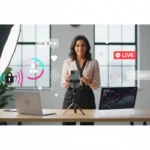
Before pressing Go Live, check the basics. Your title should be clear, your microphone should sound clean and your camera should be framed with enough light. Close private tabs, notifications and apps that could appear on screen by accident.
How To Stream To TikTok With OBS Studio
OBS Studio is useful when you need more control over scenes, sources, audio and overlays. To use OBS with TikTok, your account usually needs a TikTok RTMP server URL and stream key.
Never share your stream key. It works like a private password for your live broadcast. If someone else has it, they may be able to stream to your account while it is active. If your key is exposed, regenerate it through TikTok if that option is available.
In OBS, create a new scene and add only the essential sources first. Start with your webcam, microphone and either display capture, window capture or game capture. Avoid adding too many alerts, browser widgets and overlays until your basic video and audio are stable.
Next, open OBS settings, go to the stream section, select a custom service if needed and paste your TikTok RTMP server URL and stream key. Set a sensible resolution and frame rate, then start streaming in OBS and confirm the preview inside TikTok if prompted.
A good habit is to record a short local test before going live. Play it back with headphones and check for echo, clipping, lag, unreadable text and private details on screen. A ten minute test can prevent a public mistake.
Recommended PC LIVE Settings For A Stable Stream
The best PC LIVE settings depend on your computer, camera, internet connection and stream type. A simple talking head stream does not need the same settings as a gameplay stream with overlays and fast movement.
For weaker laptops, 720p at 30 frames per second is a safe starting point. It is easier on your processor, graphics card and upload connection. Higher settings such as 1080p and 60 frames per second can look smoother, but they need stronger hardware and a more stable network.
Bitrate means how much video data your stream sends each second. If the bitrate is too low, the stream may look blurry. If it is too high, your upload connection may struggle. Increase quality only after you know your PC and internet can cope without dropped frames.
Audio is just as important as video. A clear microphone, headphones and balanced sound levels can keep people watching longer than a sharp camera with poor sound. Keep your voice louder than music, gameplay or desktop audio.
- LIVE access confirmed
- Camera framed clearly
- Microphone tested properly
- Lighting checked before going live
- Notifications closed
- Internet connection stable
- Stream key protected
A simple setup can still produce strong results. Better audio helps people stay longer. Better lighting makes products and faces easier to trust. A clear title helps the right viewers join. A clean layout makes the stream easier to follow on a mobile screen.
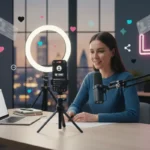
- Best beginner setup, camera, microphone, simple lighting and one clear scene
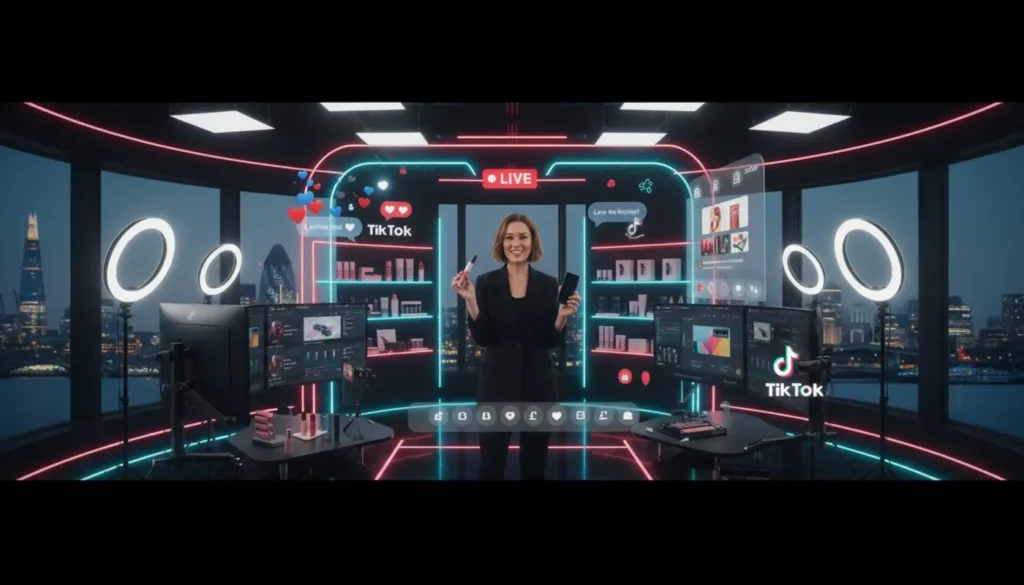
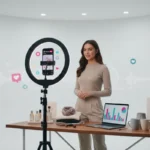
- Best seller setup, camera, product table, strong lighting and a clear show plan
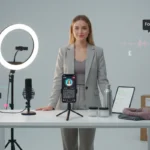
- Best gamer setup, game capture, face cam, clean audio and a layout tested on mobile
How To Stream PC Gameplay On TikTok
To stream PC gameplay on TikTok, start with game capture in LIVE Studio or OBS. If you see a black screen, try window capture or display capture instead. Some games work better in borderless window mode than full screen mode.
If you use a face cam, place it where it does not block key gameplay details. Portrait layouts can be harder for gaming because most PC games are made for wide screens. Test your layout on a phone, not only on your computer monitor.
Keep private information away from the stream. Close messages, emails, payment pages, browser tabs and account dashboards. Desktop streaming gives you more control, but it also creates more chances to show something by mistake.
Common TikTok PC LIVE Problems And Fixes
If the LIVE option is missing, check your age, follower count, country, account standing and desktop LIVE access. Having mobile LIVE does not always mean you also have LIVE Studio or stream key access.
If LIVE Studio will not install, check that you are using Windows 10 or later and downloading from TikTok’s official source. Restart your PC, check disk space and make sure your security software is not blocking the installer.
If your camera is not detected, close other apps that may already be using it, such as video meeting software. Then check Windows privacy permissions and select the correct camera inside LIVE Studio or OBS.
If your microphone has no sound, check the input device, system mute, app mute and permissions. Remove duplicate microphone sources if you hear echo. Use headphones so your speaker sound does not feed back into the mic.
If your stream is lagging, use Ethernet where possible, close heavy background apps and lower the resolution or frame rate. Dropped frames often mean your upload connection or encoder is struggling. An encoder is the part of your setup that turns video and audio into a stream TikTok can receive.
If OBS will not connect, recheck the RTMP server URL and stream key. Stream keys can expire, be regenerated or be unavailable if your account does not support that streaming method. Copy and paste carefully, and never post your stream key in a public support forum.
How To Make A TikTok PC LIVE More Engaging
A clean technical setup is important, but it does not automatically make a strong live stream. People stay when they understand what is happening, why it matters and how they can take part.
Plan the topic before you go live. Create a strong first minute, then give viewers a reason to comment. Ask simple questions, respond by name where possible and keep the pace moving.
For education, tell viewers what they will learn. For product demos, show the problem before showing the product. For gaming, set a clear challenge. For live selling, plan the order of products, offers, proof points and audience questions.
If the settings feel confusing at first, keep the setup simple. Most creators only need a camera, microphone and one screen source to begin. The goal is not perfection on the first stream. The goal is to go live with confidence, learn from each session and improve what matters to the viewer.
Consistency also helps. A regular schedule teaches your audience when to turn up and gives TikTok stronger signals about your content pattern. If you are building a serious LIVE programme, plan titles, scripts, moderators and post live reviews as part of the work.
Frequently Asked Questions
Can I Go Live On TikTok From A Laptop?
Yes, you can go live on TikTok from a laptop if your account has LIVE access and your laptop meets the software requirements. TikTok LIVE Studio currently supports Windows 10 or later.
Do I Need 1,000 Followers To Go Live On TikTok?
TikTok generally requires 1,000 followers for LIVE, but this can vary by region, account type and feature access. Always check your own account for the current LIVE option.
Can I Use OBS Without A TikTok Stream Key?
Usually, OBS needs a TikTok RTMP server URL and stream key. If you cannot see those details, your account may not have OBS access yet.
Is TikTok LIVE Studio Available On Mac?
TikTok’s current LIVE Studio guidance states support for Windows 10 or later. Mac users should check TikTok’s official download page because software availability can change.
Why Is My TikTok LIVE Blurry On PC?
Blurry video is often caused by low bitrate, weak upload speed, poor lighting or settings that are too demanding for your PC. Lower the resolution or frame rate first, then test again.